My Terminal Is Ready
Before setting up my terminal, I first checked whether virtualization was enabled on my system. I did this by opening Task Manager, navigating to the Performance tab and checking the virtualization status under CPU. Fortunately, it was already enabled, which made the process easier.
I initially tried using the regular Windows PowerShell to configure my Linux environment, but I kept encountering errors relating to administrator permissions. After contacting one of the admins for assistance, I was advised to use PowerShell as an Administrator instead. This allowed me to execute the necessary commands and proceed with the setup.
I also experienced some network difficulties along the way. Eventually, I downloaded and installed Ubuntu from the Microsoft Store. However, when I tried to launch it, I continued receiving error messages.
With further assistance from one of the admins, I was able to identify the exact issue: my system was missing the WSL 2 Linux kernel update package for x64 machines. I downloaded and installed the required package, then returned to Ubuntu and launched it successfully.
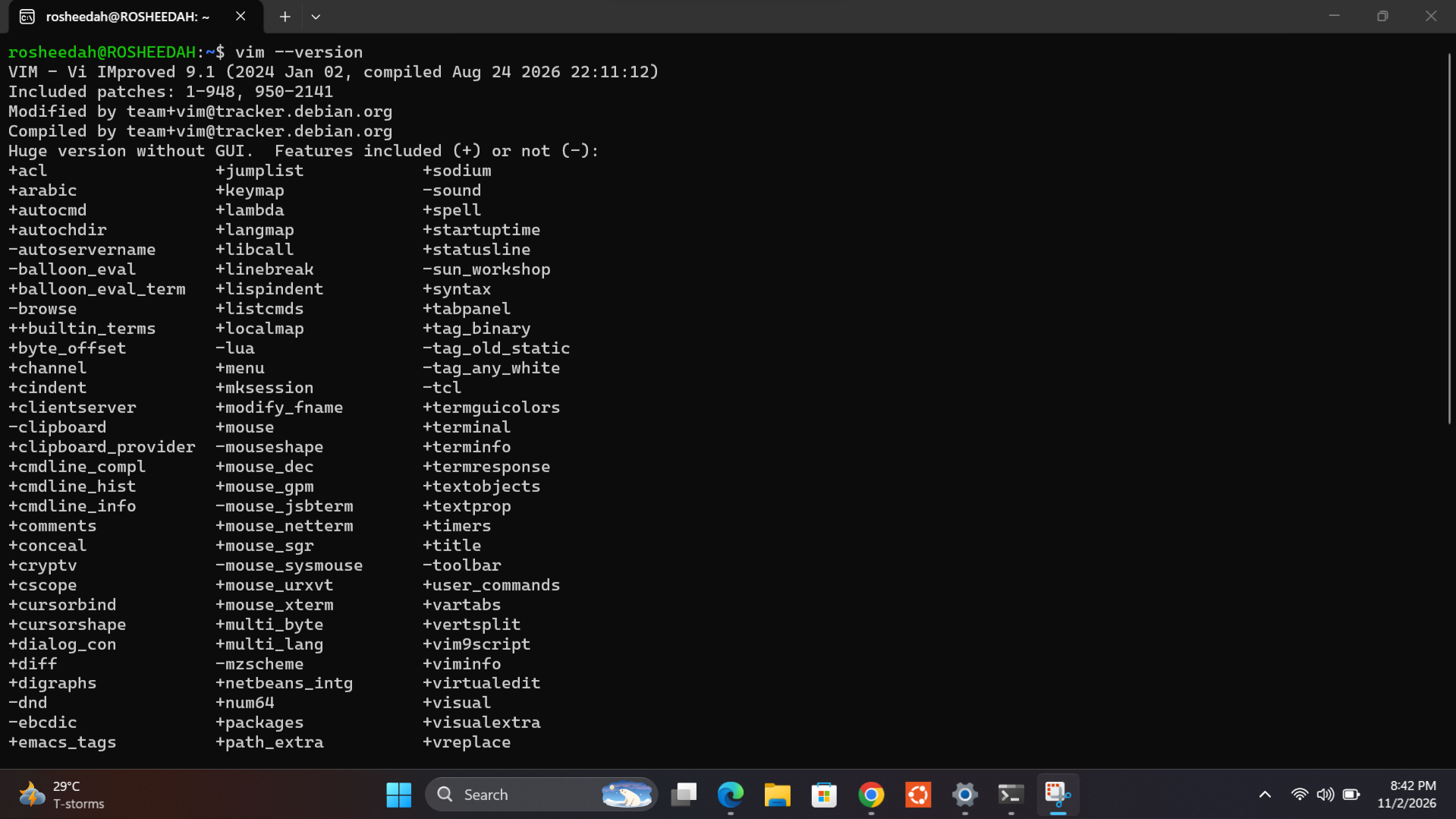
During the initial setup, Ubuntu prompted me to create a UNIX username and password. After completing this step, I proceeded to install the necessary packages, including Vim, Python 3 and Python 3 pip.
Through this process, I learned how to configure a Linux environment on Windows using WSL 2, work with PowerShell as an Administrator, and install the necessary packages. Although the process involved several challenges, I was eventually able to get everything set up.
My terminal is now ready!