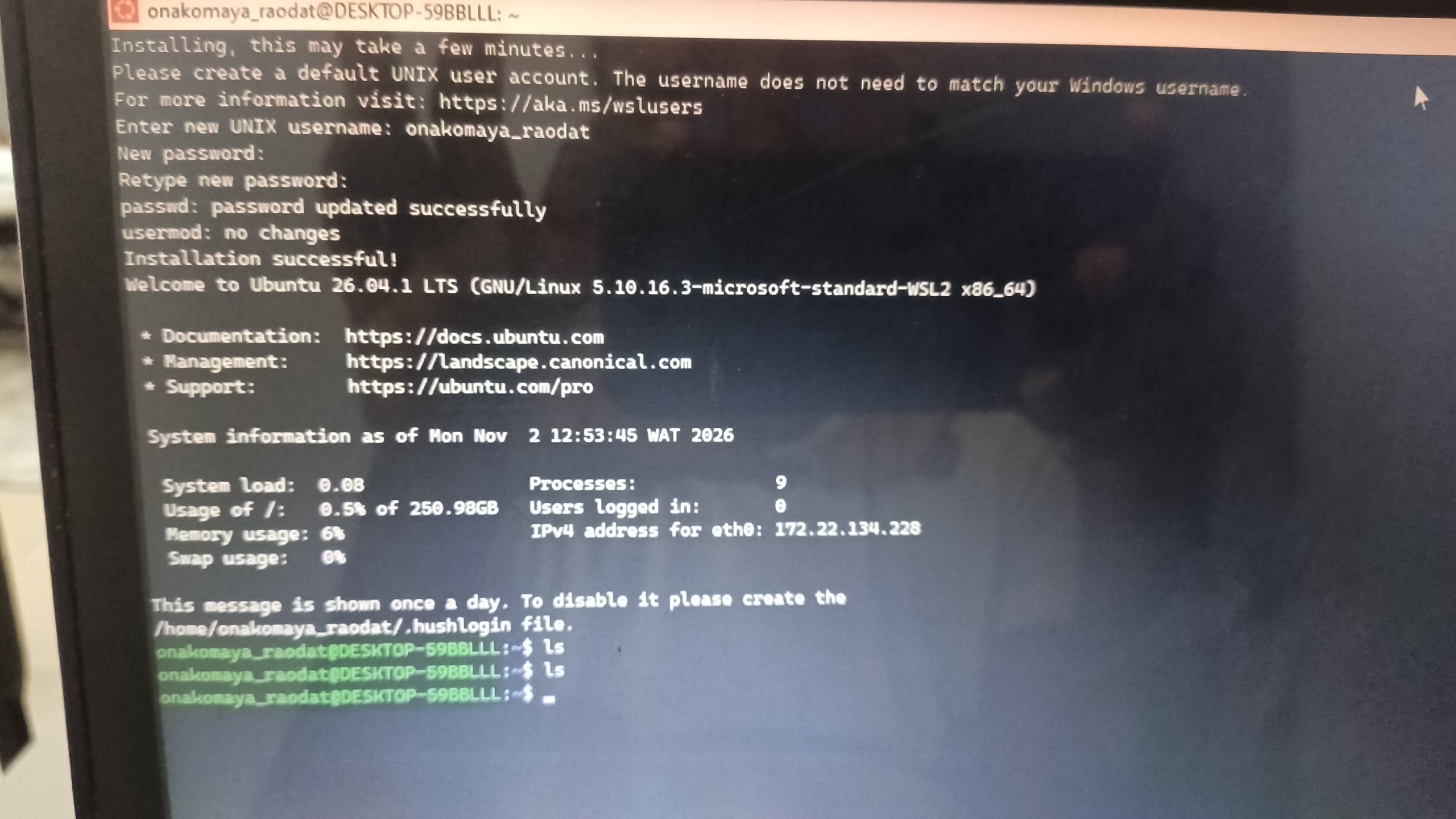
My Terminal is Ready
I used the Windows Subsystem for Linux (WSL) method to install and set up Ubuntu on my Windows system. I started by checking Task Manager to confirm system compatibility and discovered that virtualization was disabled. I initially struggled to enable it through BIOS setup but, after seeking help from the admins and watching the recommended videos, I followed the correct procedure and successfully enabled it.
I proceeded to install Ubuntu through Windows PowerShell but encountered errors. I was advised to run PowerShell as an administrator, which resolved the issue. When the expected update did not appear after rebooting, I was instructed to install Ubuntu manually. I completed the installation, created my username and password, and updated the application.
Through this process, I learned how to enable virtualization, use Windows PowerShell, install WSL and Ubuntu, and configure my Linux environment. Ubuntu is now successfully installed and ready for use through my terminal.