Practicing File Operations in the Terminal
I practised three important Linux commands: cp, mv, and rm.
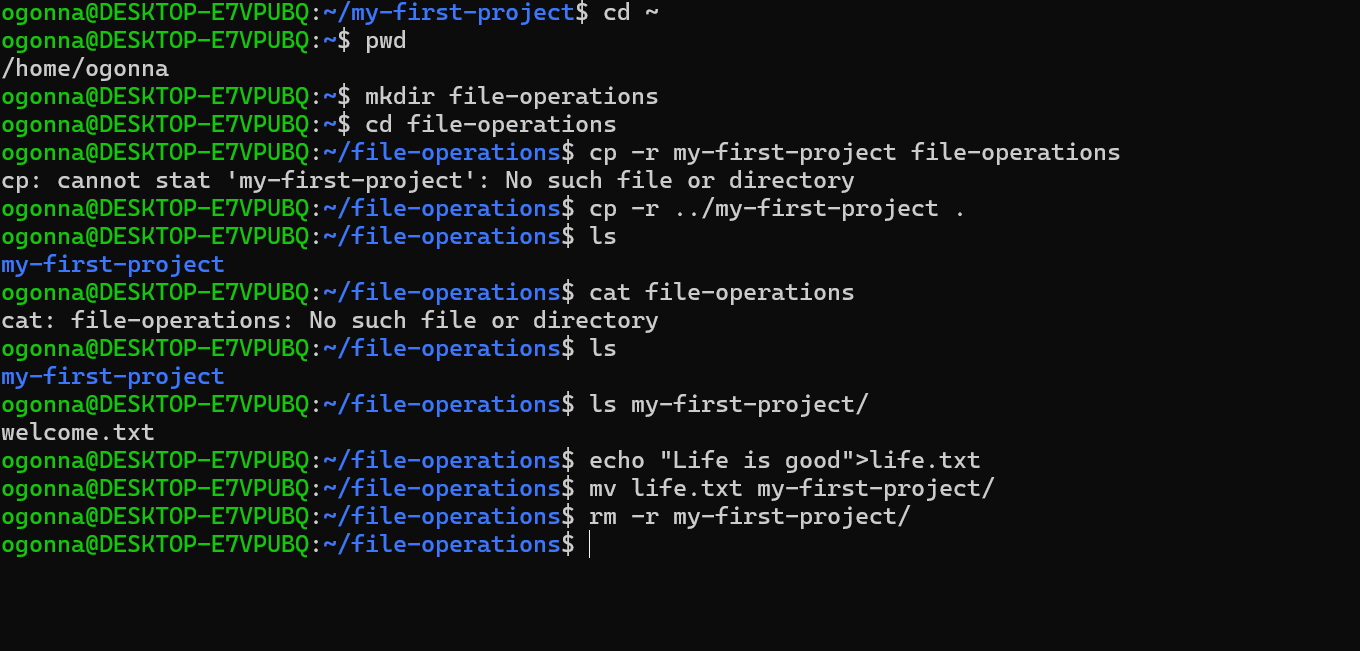
I started by creating a directory called file-operations. I wanted to copy my previous project folder into it using cp -r.
My first attempt returned an error because I was trying to copy a folder that wasn't inside my current directory. After checking my location, I corrected the command using ../my-first-project and successfully copied the folder.
Next, I used echo to create a text file called life.txt. I then used mv to move the file into my copied project folder.
Finally, I used rm -r to delete the copied directory and everything inside it.
Here is what I learned about the three commands:
cpcopies a file or directory. The original remains where it was. I usedcp -rbecause I wanted to copy a directory and its contents.mvmoves a file or directory from one location to another. Unlikecp, it does not leave the original in its previous location.rmis used to remove files or directories. I usedrm -rto delete a directory together with everything inside it.
One important difference I learned is that cp duplicates, mv changes the location, while rm removes.
I also learned that making a mistake with a command is not the end of the process. My first copy attempt failed, but checking my directory location helped me understand the problem and correct it.
I'm getting more comfortable working with Linux commands and managing files directly from my terminal.