Editing My First File in Nano
Today, I practised using Nano, another terminal text editor.
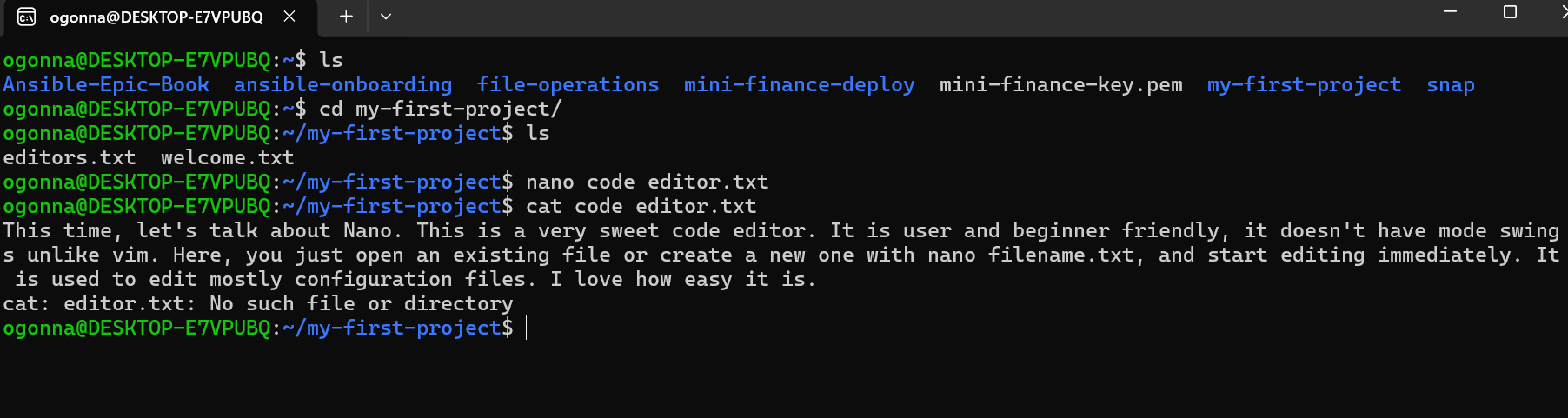
First, I used ls to check my folders, then cd my-first-project/ to enter my project directory. I typed nano code editor.txt to open Nano and create my file.
Inside Nano, I wrote the following reflection:
"This time, let's talk about Nano. This is a very sweet code editor. It is user- and beginner-friendly; it doesn't have mode switches like Vim. Here, you just open an existing file or create a new one with nano filename.txt, and start editing immediately. It is used to edit mostly configuration files. I love how easy it is."
After writing, I used Ctrl + O to save the file and Ctrl + X to exit Nano.
I then tried to use cat to check my file content. I encountered a small issue with the filename because it contains a space, which reminded me to pay attention to filenames when using terminal commands.
What I learned is that Nano is very easy to use because I can start typing immediately without switching between modes like Vim. Compared to a graphical editor, Nano allows me to edit files directly in the terminal without opening another application.
I love how simple it is. Another little step forward in my learning journey!