Editing My First File in Nano
Creating and Editing Files Using Nano
In this exercise, I used the Nano text editor to create and edit a file directly from the Linux terminal.
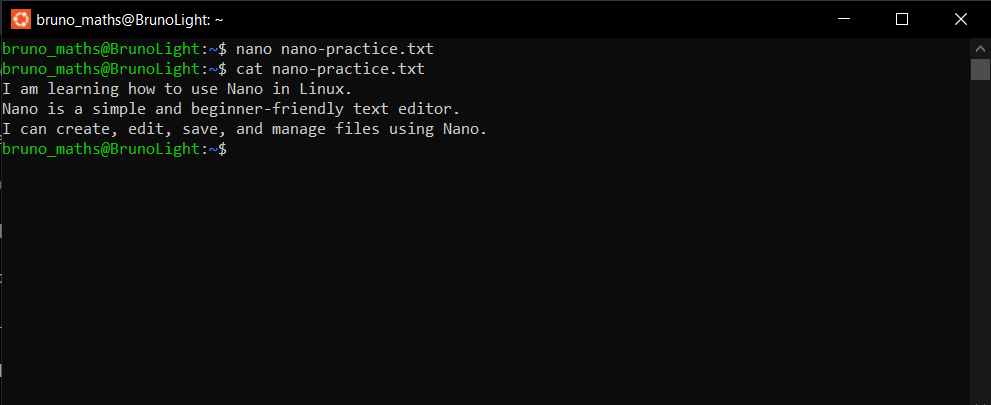
First, I entered nano nano-practice.txt to create and open a new text file. Nano displayed an empty editing screen where I typed three lines of text.
After entering the content, I used Ctrl + O to save the file. I confirmed the filename by pressing Enter and then used Ctrl + X to exit the editor.
Finally, I ran cat nano-practice.txt in the terminal to display and verify the saved content.
What I Learned
I learned how to create, edit, save, and exit a text file using Nano. I also discovered that Nano displays useful keyboard shortcuts at the bottom of its interface, making it easier for beginners to understand how to perform different operations.
Comparing Nano with a Graphical Text Editor
Nano and graphical text editors both allow users to create and edit text files. However, graphical editors provide visual menus, mouse controls, and familiar formatting options, while Nano operates entirely within the terminal and relies mainly on keyboard shortcuts.
I found Nano relatively straightforward because I could start typing immediately without learning different editing modes. It also helped me become more comfortable working directly in the Linux terminal.