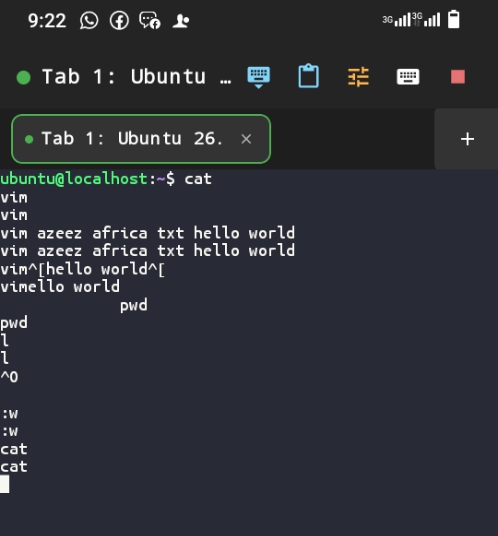
My first file in vim
Read onlineOpen PDF
Vim — The Programmer's Editor AiCE Software Engineering Foundations — The Developer Environment Every file you create in the terminal eventually needs to be written or edited from inside the terminal too — and that requires a text editor that lives there. This lesson introduces you to Vim, one of the most powerful text editors ever built, and the reason every professional developer eventually learns to use it. 1. Why Learn Terminal Text Editors? When you deploy a web application to a server, or provision a cloud instance, the machine you connect to will almost certainly have no graphical interface at all. There will be no mouse, no File Explorer, no double-clickable icons — only a terminal, and a text editor running inside it. This is not a rare edge case. It is the daily reality of backend development, server administration, and cloud engineering. Any developer who works beyond their own local machine needs to be comfortable editing files entirely from the command line. Two Editors, One Requirement The two most widely available terminal text editors are Vim and Nano. Vim is more powerful but has a steeper learning curve; Nano is simpler and friendlier for beginners. Every professional developer is expected to know both — this document covers Vim, and the next covers Nano alongside a direct comparison of the two. 2. Checking Installation Before using Vim, confirm that it's installed on your system: vim --version If this produces output showing a version number, Vim is installed and ready to use. If you instead see a “command not found” error, install it with: sudo apt install | African Institute for Comput1 sudo and apt sudo temporarily grants you administrator (root) privileges. apt is Ubuntu's package manager — think of it as an app store for the terminal. You will use both of these tools often as your skills grow. 3. Vim's Modal Design Vim (Vi Improved) is available on virtually every Unix-based system, and many of the world's most productive developers write code exclusively inside it. Its power comes from a modal design: rather than always being ready to accept typed text, Vim has distinct modes for distinct tasks. This feels unusual at first, but becomes second nature with practice. Vim operates in two primary modes: Mode Purpose How to Activate Command Mode Navigate, save, quit, run Vim commands Default when Vim opens (press Esc to return) Insert Mode Type and edit text freely Press i in Command Mode The bottom of the Vim interface always tells you which mode you're in. In Insert Mode, you'll see -- INSERT -- displayed there. In Command Mode, that indicator disappears. 4. Opening, Creating & Inserting Text To open an existing file, or create a new one, use: vim filename.txt If the file already exists, Vim opens it. If it doesn't, Vim creates a new empty buffer under that name, which becomes an actual file only once you save it. When Vim opens, you start in Command Mode — you cannot type text yet. Press i to switch into Insert Mode.