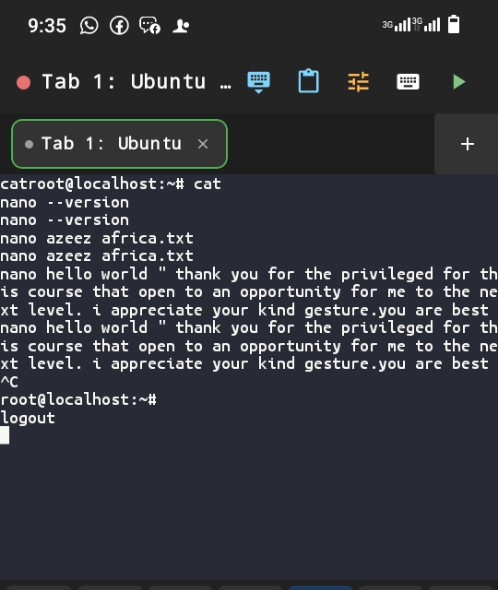
Editing my first file in Nano
Nano — The Beginner-Friendly Editor Nano is a simpler terminal text editor. Unlike Vim, it has no modes at all — you open a file and start typing immediately. Its available commands are displayed along the bottom of the screen at all times, which makes it far more discoverable to someone encountering it for the first time. Nano is an excellent choice for quick edits, configuration file changes, and any situation where you need to make a fast change without the overhead of Vim's modal system. 2. Opening and Creating Files with Nano nano filename.txt The Nano interface opens immediately, with the file name displayed at the top and a row of available commands along the bottom. The ^ symbol you'll see there represents the Control key (Ctrl) — so ^O means Ctrl + O. 3. Typing and Navigating In Nano, you type immediately — there is no mode switching required at all. Use the arrow keys to move around within the file; Nano also supports Home, End, Page Up, and Page Down for faster navigation across longer files. 4. Saving in Nano Nano calls saving “Write Out.” To trigger it.
Ctrl + O Nano will ask you to confirm the file name at the bottom of the screen — press Enter to accept it and complete the save. 5. Exiting Nano Ctrl + X If you have unsaved changes at the moment you try to exit, Nano will ask whether you want to save them first. Press Y for yes or N for no, then Enter to confirm your choice. Shortcut Action Ctrl + O, then Enter Save the file (Write Out) Ctrl + X Exit Nano Ctrl + K Cut an entire line Ctrl + U Paste a cut line Ctrl + W Search for text within the file 6. A Complete Nano Workflow A full round trip of creating and writing a file in Nano looks like this: nano
open (or create) the file # 2. start typing content immediately Ctrl + O, Enter # 3. save the file Ctrl + X # 4. exit Nano cat lagos_tech_report.txt # 5. confirm the file contents
Notice how much shorter this feels than the Vim workflow — there is no mode to switch into before you can begin typing, which is exactly why Nano feels immediately comfortable to most newcomers.
Use Nano to create a file containing at least three lines. Save it with Ctrl + O, exit with Ctrl + X, and confirm its content with cat. Submit a screenshot and compare the experience with using a graphical editor.